

• Skip to primary navigation
  • Skip to main content
  • Skip to footer
MENUMENU
  • Resources
    • FAQ
    • Blog
    • Webmail
    • Control panel
  • Contact
        • We are open
          weekdays at 8-16.

          +358 20 741 7991

          Send Mail

  • Login
Easylinehost

Easylinehost

MENUMENU
  • Frontpage
  • WordPress
    • WordPress webhotel
    • Managed WordPress
  • Web Hosting
  • Virtual Servers
  • Domains
  • All services
        • WEBSITES
          • WordPress webhotel
          • Managed WordPress
          • Web Hosting
          • Domains
        • OTHER SERVICES
          • Domains
          • Spam and virus filtering service
          • Authenticated SMTP
        • SERVERS
          • Virtual Servers
          • Monitoring and usability service
        • OFFICE SERVICES
          • Remository
          • ActiveCampaign
  • Info
  • Resources
    • FAQ
    • Blog
    • Webmail
    • Control Panel
  • eng
  • Webmail

How to create a form in WordPress using the Contact Form 7 plugin

Contact Form 7 is a plugin for WordPress that you can use to easily create all the forms you need on your website.

19.7.2021 by Easylinehost Helpdesk

5.10.2021
Easylinehost Helpdesk

WordPress -
How to create a form using the Contact Form 7 plugin

Contact Form 7 is a plugin for WordPress that you can use to easily create all the forms you need on your website. In this article, we will advise you on how to implement the plugin, create your own fields on the form, and publish the form.

Downloading Contact Form 7 plugin

From the left menu select Plugins – Add new

Search for Contact Form 7 plugin and then click Install now to install the plugin.

When the installation is complete click Enable Plugin.

Select Contact from the side menu and click on the form to edit it. You can create an entirely new form by clicking Add New or select the automatically created form.

Change the form name if you want.

The form code is displayed in the Form section.

The default field is ready with name, email, subject, message and submit fields.

Creating your own fields, for example drop-down menu

You can add other elements to the form from above. For example a drop-down menu.

From the drop-down menu, select first whether the field is mandatory.

Next, you can choose a name for the field.

In the Options section, add the desired options that will appear in the drop-down menu.

You can allow multiple selection or put a blank selection as the first option.

Id and Class values ​​add the Id and Class attributes to the html code of the field. The fields can be left blank.

When the menu is complete select Insert tag.

<label> and </label> mean that the element is a labeled element that the screen reader can detect. Each element must be labeled for the form to work in an accessible way.

The drop-down menu code appeared in the form’s code. Move the code to a desired location.

Add a tag header above the drop-down menu code. For example <label> Options

After a drop-down menu code add </label>


Email settings

Form submissions will be sent to specified email addresses. If there are several addresses, separate them with a comma.

You can also specify the sender and subject of the email. You can either write what you want or put the values ​​of the form fields on the form.

In the Additional headers section, you can specify the cc and bcc recipients of the email.

Put all form fields in the Message body field or some of the information may be lost. You can find the codes for the fields you created at the top (example: menu-794).

Check the box if you want send the email in html format.

If a file field was specified for the form, the field must also be specified in the File Attachment so that the attachment is attached to the e-mail you are sending.

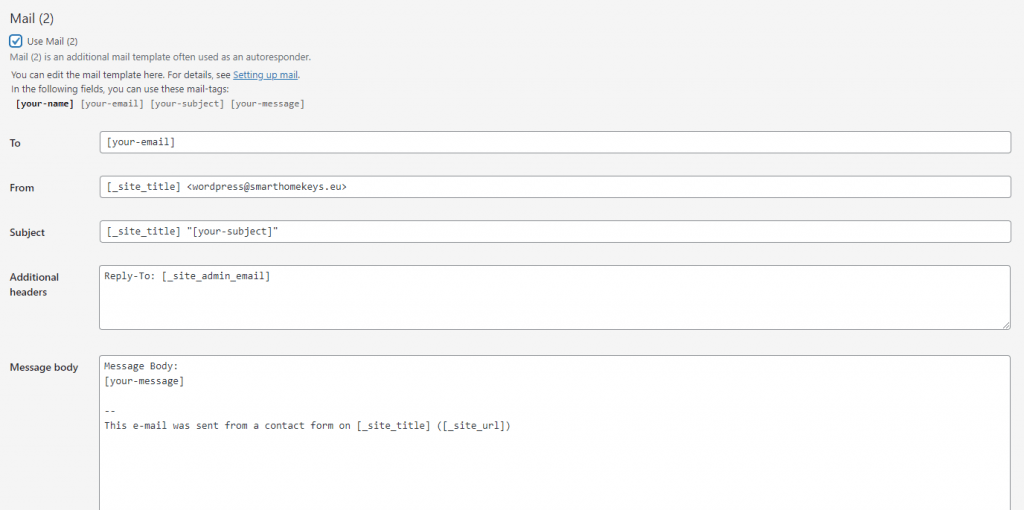
Mail (2) is a similar form to the upper one.

Mail 2 is a confirmation message to the person completing the form. Use this if you want to send a confirmation message or other notification to the sender of the message.
The Messages section contains notification messages related to the form field. You can edit notifications if you wish.

Save the form at the top of the page.

Copy (Ctrl+C) the shortcode below the form name.

From the left menu select Pages -> All pages and select the page to which you want to add the form to or create an entirely new page by clicking Add New.

Paste (Ctrl+V) the shortcode into the page.

Click Preview and you will see the form on your pages.

If you are ready to publish the page that contains the form, click Publish.

Retro Game House on osa Easylinehostia
29.5.2026
Easylinehost
Retro Game House is part of the story behind Easylinehost
This article shows different web hosting options and provides instructions on how to order web hosting from Easylinehost.
Read more
30.9.2025
Milla Tirkkonen
Instructions for Ordering Web Hosting
This article shows different web hosting options and provides instructions on how to order web hosting from Easylinehost.
Read more
30.9.2025
Milla Tirkkonen
Instructions for Registering a Domain
This article explains step-by-step how to register a domain and how to transfer your domain to Easylinehost.
Read more
16.5.2022
Easylinehost Helpdesk
Best Canva keywords
Canva helps to make designs more easily. This article highlight the best and unique Canva keywords for creating eye-catching designs.
Read more
Traveling and blogging
7.4.2022
Easylinehost Helpdesk
Seven Steps to Start Your Eco-friendly Travel Blog
Blogging is the best way to put your ideas out there, spread awareness, and help people. Check out seven steps to start your own blog.
Read more
28.3.2022
Easylinehost Helpdesk
How to remove a picture background in Canva
Canva is a great tool for designing. One remarkable application that Canva offers is the option to remove the background from a picture with just one click.
Read more
4.3.2022
Easylinehost Helpdesk
Third Party Cookies Are Soon History
Google Chrome is preparing to remove third-party cookies permanently. The Google's new policy brings new alternative solutions.
Read more
Ice cream and berries - How to resize an image
23.2.2022
Easylinehost Helpdesk
How To Resize an Image Using Free Tools
Do you need to resize an image to your webpage? Resizing images helps to increase webpage loading speed and improve overall SEO index.
Read more
Blogging for your own company
8.12.2021
Easylinehost Helpdesk
Should I create a Company blog?
Does it make sense to start a company blog? Blog helps you establish an authority in your business market.
Read more
1 2 3 … 5 Next »

Website & SEO how to,  wordpress

Footer

CUSTOMER SERVICE & SALES
info@easylinehost.com
+358 20 741 7991

HELPDESK
helpdesk@easylinehost.com

FOLLOW US

WEBSITES
WordPress webhotel
Managed WordPress
Webhotels
Domains

OTHER SERVICES
Domains
Spam filtering
Authenticated SMTP

SERVERS
Virtual servers
Monitoring and usability service

OFFICE SERVICES
Remository
eLetter
eCommerce

INFO

FAQ

BLOG

SIGN IN

© 2004–2026 Easylinehost